
GUIDE · X ACCOUNTS
How to give someone access to your X account without your password
X has a built-in way to let someone post for you, and no password changes hands. Four steps, four screenshots, and the one thing about it that most write-ups state backwards.
At some point somebody else has to post for you: a VA, a co-founder, an agency, the person who actually writes well. The obvious move is to send them the password, and it is the wrong one: you lose the ability to see who did what, you cannot revoke one person without locking everyone out, and two-factor turns into a group chat.
X has a built-in answer. It is called Delegate, it takes about a minute, and no password ever changes hands. Here is the whole thing, including the part about Direct Messages that most write-ups of this feature get wrong.
What Delegate actually is
Delegate lets you invite another X account to act on yours. They keep their own login and their own two-factor; they switch into your account from theirs, post, and switch back. You see them in a list, and you remove them from the same list. X calls the people you invite members, and gives them one of two roles.
Two things to know before you start, because both of them stop people a minute in:
BEFORE YOU START
The person you invite has to be accepting invitations. In their own Delegate settings there is a switch, "Allow others to invite you to their account". If it is off, they simply will not appear in your search, with no explanation offered.
An invitation is not access. It sits in their notifications until they accept it, and nothing about your account changes until they do.
Adding someone, in four steps
Logged in as the account you want them to post from, not theirs.
1. Open Settings → Security and account access
From the left navigation: More → Settings and privacy, then Security and account access. Delegate is the last row, under Connected accounts. The direct address is x.com/settings/delegate, which skips the walk.
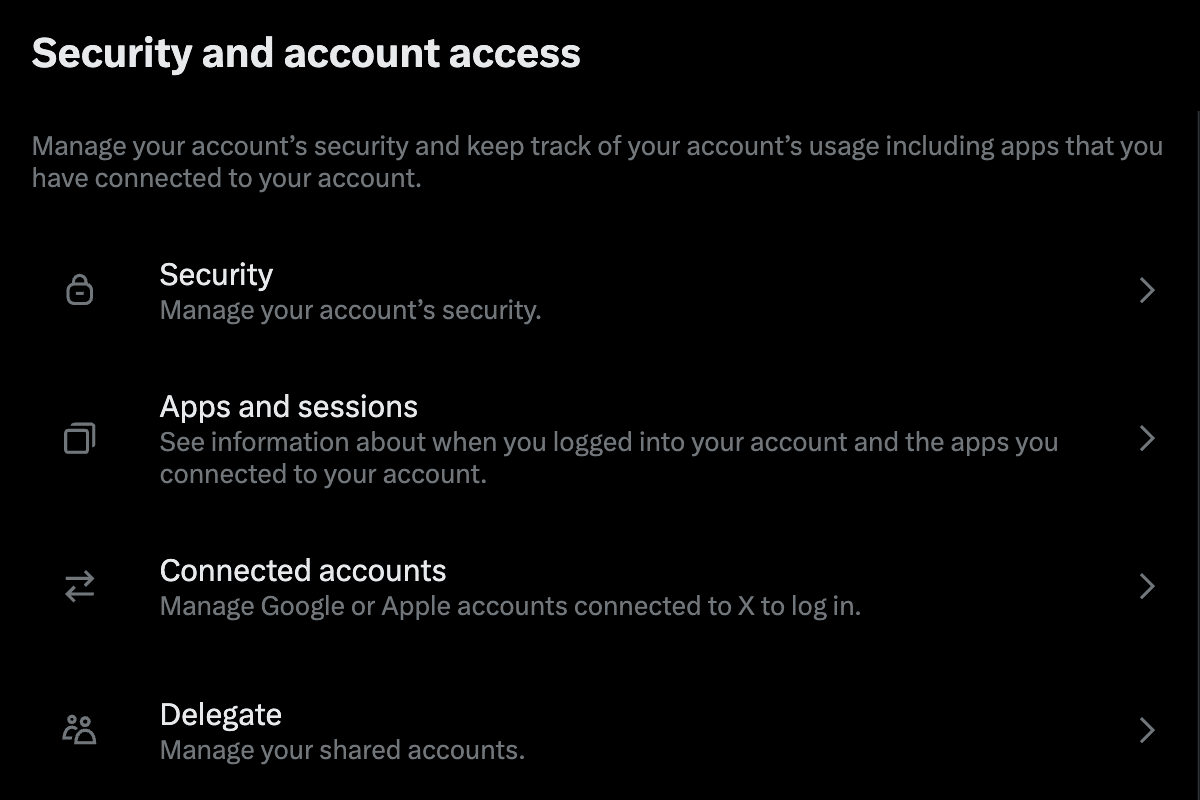
2. Open “Members you’ve delegated”
The Delegate screen has two halves. The top half is about invitations you receive and can be ignored for now. The bottom half, under Your delegations, is the one you want: Accounts delegated to you is what other people have shared with you, and Members you’ve delegated is the list of people who can post as you.

3. Invite a member
Press Invite a member, type the handle, and pick the right account out of the list. Check the handle character by character rather than the display name: display names are not unique on X and impersonating one is the entire business model of a certain kind of account.

4. Choose the role, then send
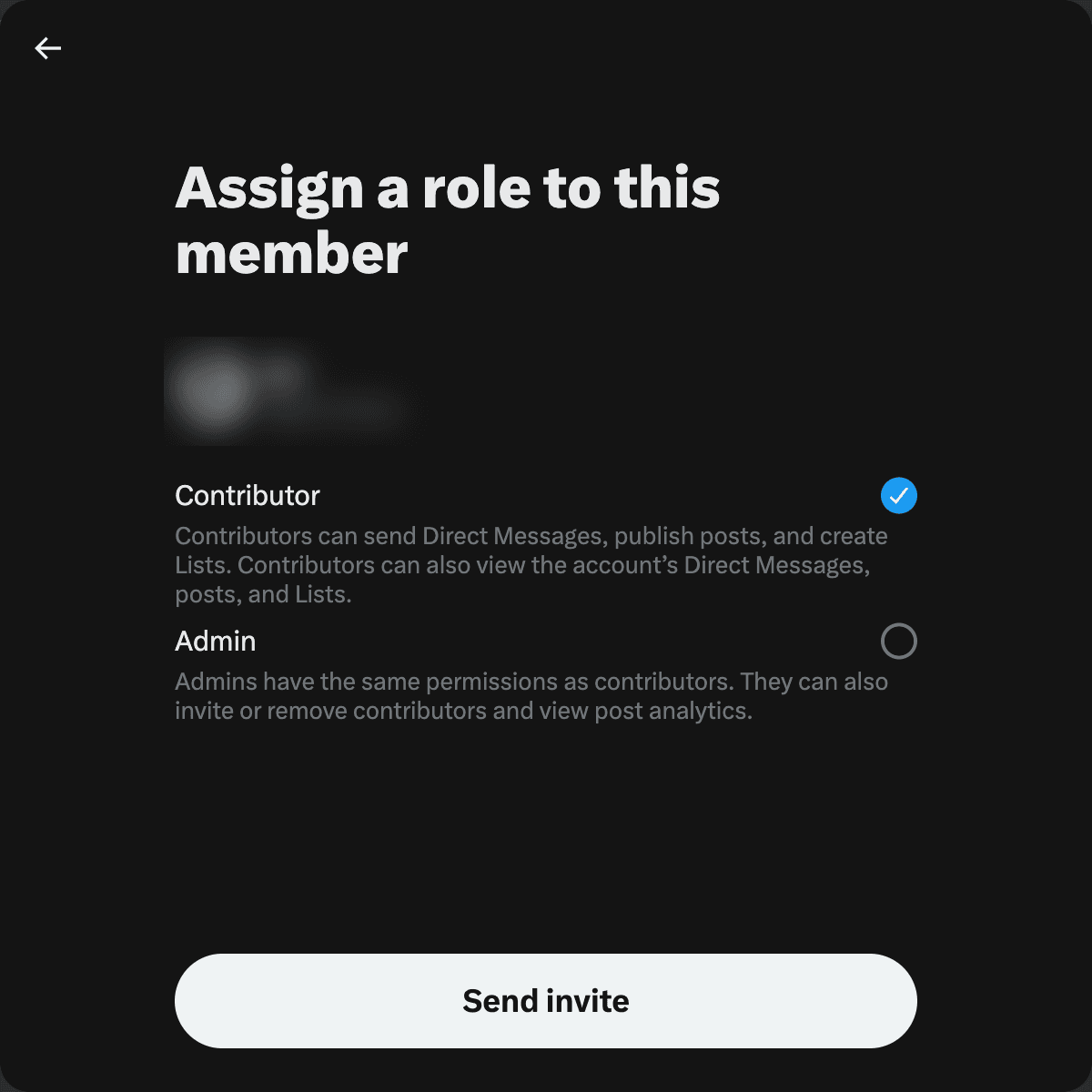
This is the screen that matters. Two roles, and the difference between them is not cosmetic. See the next section. For someone who is there to post, the answer is Contributor. Then Send invite: they get an email and a notification, and nothing happens to your account until they accept.
Contributor or Admin
X spells both out on that dialog. Word for word, from the screenshot above:
CONTRIBUTOR
“Contributors can send Direct Messages, publish posts, and create Lists. Contributors can also view the account’s Direct Messages, posts, and Lists.”
ADMIN
“Admins have the same permissions as contributors. They can also invite or remove contributors and view post analytics.”
Give out Admin only if you mean it. An Admin can invite further members, which means the list of people who can post as you stops being a list you alone control.
The part about Direct Messages
Read that Contributor line again: “Contributors can also view the account’s Direct Messages, posts, and Lists.” A great many guides to this feature say a delegate cannot see your DMs, and so do plenty of agencies selling account management, ourselves included until we went and looked. That is not true, and it has not been true for a while.
Does the Chat passcode cover this?
Partly, and this is the question everyone asks second. X Chat encrypts conversations with a key held behind a PIN, and X is explicit that “your key can only be recovered using the PIN you set when enabling encrypted Chats”. A delegate signs in as themselves and switches into your account; they never have that PIN. So an encrypted conversation should stay closed to them.
“Should” is doing real work in that sentence: it follows from how X describes the encryption, not from a test anybody has published, and we have not run one either. What is certain is how much it leaves outside:
WHAT THE PIN DOES NOT COVER
Message requests. X: they are "unencrypted until the user accepts the request", so everything sitting in your requests inbox is in the clear.
Anyone not registered for Chat. X: "If the user you are messaging has not registered for Chat, they will not have a public key, so the message will be sent unencrypted."
Everything from before. Older conversations are whatever they were when they happened; turning on a passcode today does not reach back.
Sending. Nothing about encryption stops a Contributor sending Direct Messages as you.
Which leaves two things worth deciding on purpose rather than discovering later:
Look at the inbox first. Clearing it fixes nothing, because the access lasts as long as the delegation and covers whatever arrives during it. Look anyway: knowing what is in there is how you decide whether any of this matters to you.
Ask for it in writing. Anyone you are paying should be willing to say, in the contract, that they will not open your Direct Messages. It is an undertaking rather than a technical limit, and the difference is exactly why it should be written down.
What a delegate can never do
This is the half that is genuinely enforced by the platform, and it is the reason the feature exists:
PASSWORD
cannot see it, cannot change it
EMAIL & PHONE
cannot see them, cannot change them
2FA
login verification stays yours alone
IDENTITY
cannot touch your handle, name or bio
Only the owner manages the password, the phone number and login verification. One consequence surprises people: changing your password does not remove your delegates. The two are unrelated, so if you are trying to get someone out, changing the password does nothing at all. Remove them from the list instead.
One more thing X says out loud, and it is fair: account owners are responsible for the content posted to their accounts by authorised admins and contributors. If they get you a strike, it is your strike.
Removing someone
Same screen you added them on. Open Members you’ve delegated, find the account, and choose Change role or Remove from group. It takes effect immediately. Nothing they already published is affected, none of your own sessions are logged out, and there is no password to reset afterwards.
From the other side, a delegate who wants out opens Accounts delegated to you, picks the account, and presses Leave account.
When it does not work
THE TWO THAT COME UP
The person does not appear when you search. Almost always their invitation setting: they need "Allow others to invite you to their account" switched on, and possibly set to "Allow anyone" rather than only people they follow. Nothing on your side will fix it.
You invited them and nothing happened. An invitation has to be accepted, so check whether it is still sitting in their notifications, and remember an invite is not access.
Why this beats sending the password
REVOCABLE
one click, one person, no reset
ACCOUNTABLE
a named account, not a shared login
INTACT
your 2FA and sessions never move
SUPPORTED
X’s own feature, not a workaround
The honest summary: Delegate is the right way to let someone post for you, and the DM access is the one thing to go in with your eyes open about. Decide what is in your inbox, get the undertaking in writing, and grant Contributor rather than Admin.
WHERE WE COME IN
If the person you are about to add is us
Contributor, never Admin. We have no reason to manage your member list.
We do not open your Direct Messages. It is in the terms, in writing, because X does not stop us.
Remove us on the screen above whenever you like. It takes effect the same second.